How to use MijnBuurt.nu
Last updated 22 October 2026
MijnBuurt.nu shows live where the fire service, ambulance and police are heading, explained in plain language. There is nothing to install and no account to create. Below you can see step by step how it works.
The map
Every dot on the map is an incident: a call-out for an emergency service. The colour tells you which service: red is the fire service, yellow the ambulance, blue the police. A dot with a glow around it is urgent (blue lights and sirens). The bigger the dot, the bigger the incident.
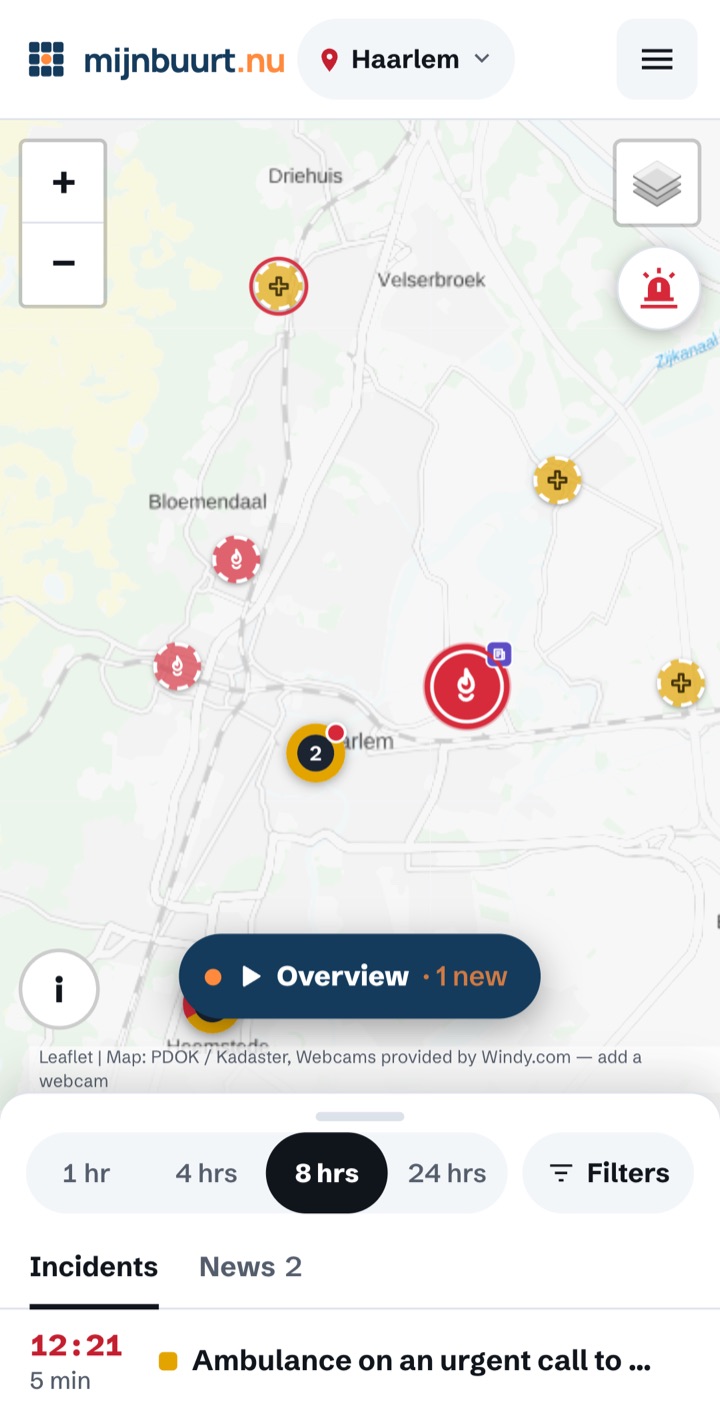
- I hear sirens: what happened near you in the last fifteen minutes?
- A dot is an incident. Red: fire service, yellow: ambulance, blue: police. Tap it for more.
- What the colours and symbols on the map mean.
- Overview: the most important things in your area, one at a time.
- The list of incidents. Slide it up to see everything, and choose how far back to look.
Example with made-up incidents.
Forgotten what a colour or symbol means? Tap the round i button at the bottom left of the map. On a computer this explanation is always shown at the bottom left.
Nuisance by neighbourhood
Want to know whether more or less nuisance is reported to the police in your neighbourhood than last year? In Filters, under On the map, turn on Nuisance by neighbourhood. The neighbourhoods are then coloured: purple means more reports than in the same months last year, teal fewer, grey about the same. A neighbourhood with only a dotted line has too few reports for a trend. At the top of the map you choose a type of nuisance, such as noise or youth. Tap a neighbourhood for the numbers.
These are reports to the police (figures from Statistics Netherlands, CBS), not everything that happens. We only compare each neighbourhood with itself: there is no ranking, and we never say a neighbourhood is safe or unsafe. Zoom in to see the neighbourhoods; zoomed out you see districts.
Moved the map away or zoomed far out? Then a round button with a red pin appears at the top right, below the siren. Tap it and the map goes back to your town.
Opening an incident
Tap a dot or a line in the list. You will see in plain language what is going on, roughly where and what time the call came in. Tap Read more for the full story.
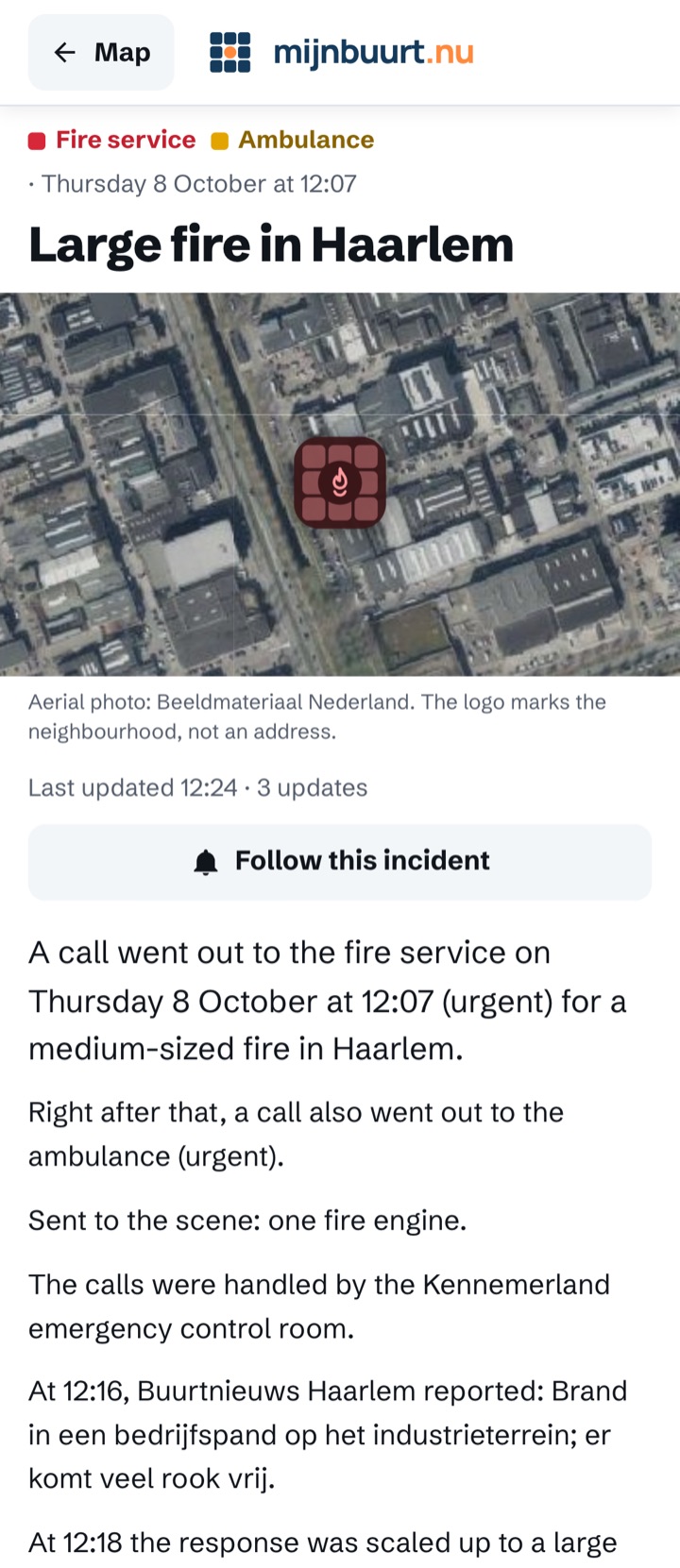
- What is going on, in plain language.
- Follow: a notification for 24 hours when something is added.
- The story grows: a new call or news report is added, with the time.
Example with made-up incidents.
At the top is a running story: when another call comes in, the incident is scaled up or the local news writes about it, a sentence is added, with the time. Below that are all the calls in a row and the original P2000 text with an explanation. With Follow you get a notification for 24 hours when something is added; with Share you can pass the incident on, for example in your neighbourhood app or WhatsApp.
The list at the bottom
At the bottom of the screen is the list of incidents near you. Slide it up with your finger to see all of it, and down again to see the map. Tapping the grey bar at the top of the list also opens or closes it. On a computer the list is always on the left of the map. At the top of the list you choose how far back to look: the last hour, or the last 4, 8 or 24 hours.
Want to know what happened near you over the past week? Below the heading of the list, tap View the past week. You then see only the incidents with news or a story, and you can choose between fire, accident, water and major incident. Tap ← Today to go back.
The Overview
The Overview button shows the most important things in your area, one at a time and large on screen: incidents and local news together. The first item shows the day so far, played back quickly on the map. Swipe up for the next item. The cross takes you back to the map.
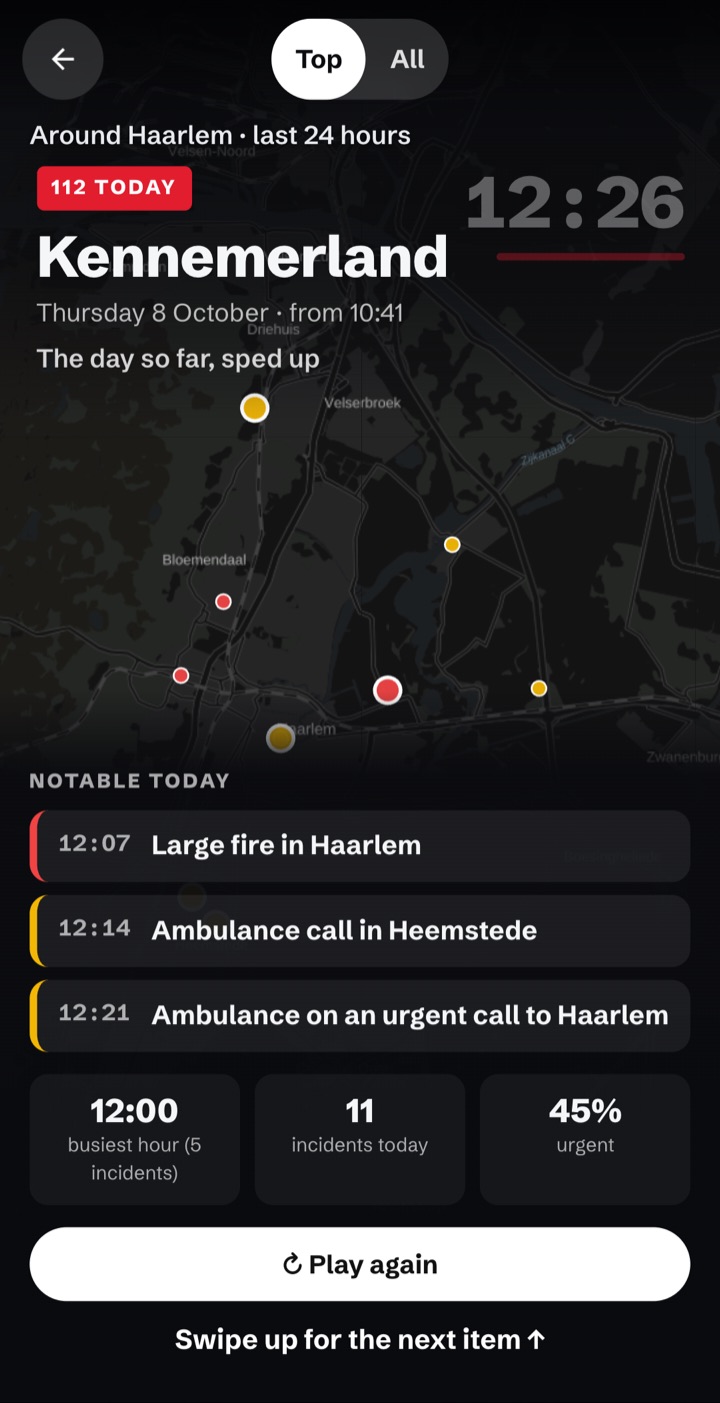
- The day so far, played back quickly on the map.
- What stood out today. Tap it for the incident.
- Swipe up for the next item.
Example with made-up incidents.
I hear sirens
Hear sirens and want to know why? Tap the siren button at the top right of the map. You will see which urgent call-outs there were near you in the last fifteen minutes. Your location stays on your own phone.
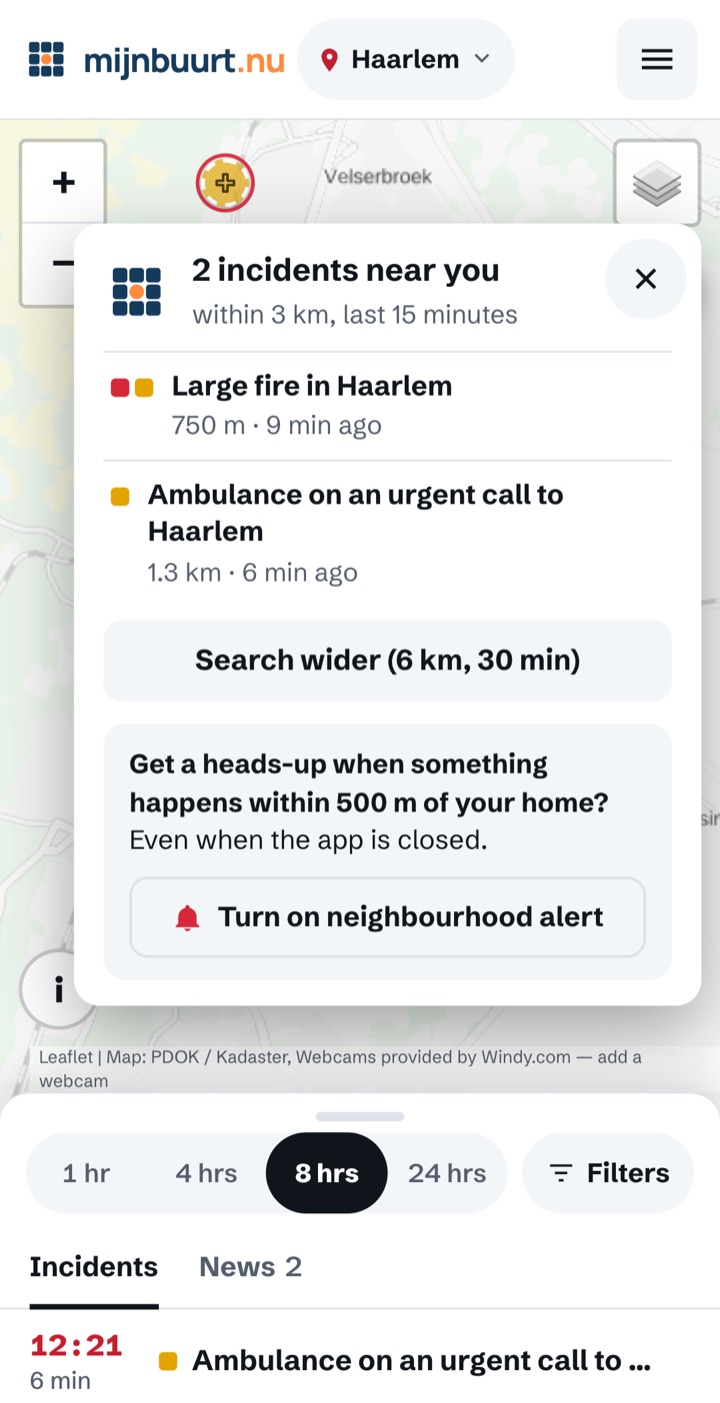
- Urgent incidents from the last fifteen minutes, with the distance and how long ago.
- Nothing there? Search wider: 6 km and half an hour.
- Neighbourhood alert: a notification when something happens close to your home.
Example with made-up incidents.
Notifications on your phone
There are two ways to get an alert:
- Follow an incident: tap Follow on an incident. For 24 hours you get a notification when something is added.
- Neighbourhood alert: a notification when something happens within 300 metres, 500 metres or 1 kilometre of your home. Turn it on via the menu (the three lines at the top right) and then Neighbourhood alert. You only enter your postcode, no house number. At night you only get a notification for something big.
The first time, your phone asks whether MijnBuurt.nu may send notifications. Choose Allow. After that you can send yourself a test notification to check that it works.
Chose Don't allow by mistake? Tap Follow or Neighbourhood alert again: you will see step by step how to turn it back on.
On an iPhone or iPad, notifications only work once you have added MijnBuurt.nu to your home screen.
Adding it to your home screen
Then you can open MijnBuurt.nu with one tap, just like an app.
- iPhone or iPad (Safari): tap Share (the square with the arrow pointing up; on newer iPhones first tap the three dots) and choose Add to Home Screen.
- Android (Chrome): tap the three dots at the top right and choose Add to Home screen or Install app.
Frequently asked questions
Is it really live?
Yes. A call usually appears on the map within a minute. Sometimes a call comes in a few minutes later.
I hear sirens but I can't see anything
The emergency service may be driving on to an incident further away. The police often don't use P2000. And for some incidents we only know the town, not the street.
Why do I sometimes not see a street?
For sensitive incidents, such as a resuscitation or someone injured by violence, we only show the town. That protects the people involved. We never show names or house numbers.
What do A1, P 1 and the other codes mean?
They are priorities: how fast an emergency service has to get there. A1 and P 1 mean urgent. We don't show planned patient transport (B1 and B2): it is not an emergency. See Priorities and Abbreviations.
Should I call 112 in an emergency?
Yes, always. MijnBuurt.nu is not an alert service and can be delayed or incomplete.
Who makes MijnBuurt.nu?
MijnBuurt.nu is not run by the government or the emergency services. Who we are is on About MijnBuurt.nu, how it works on How it works.